Refine & adjust
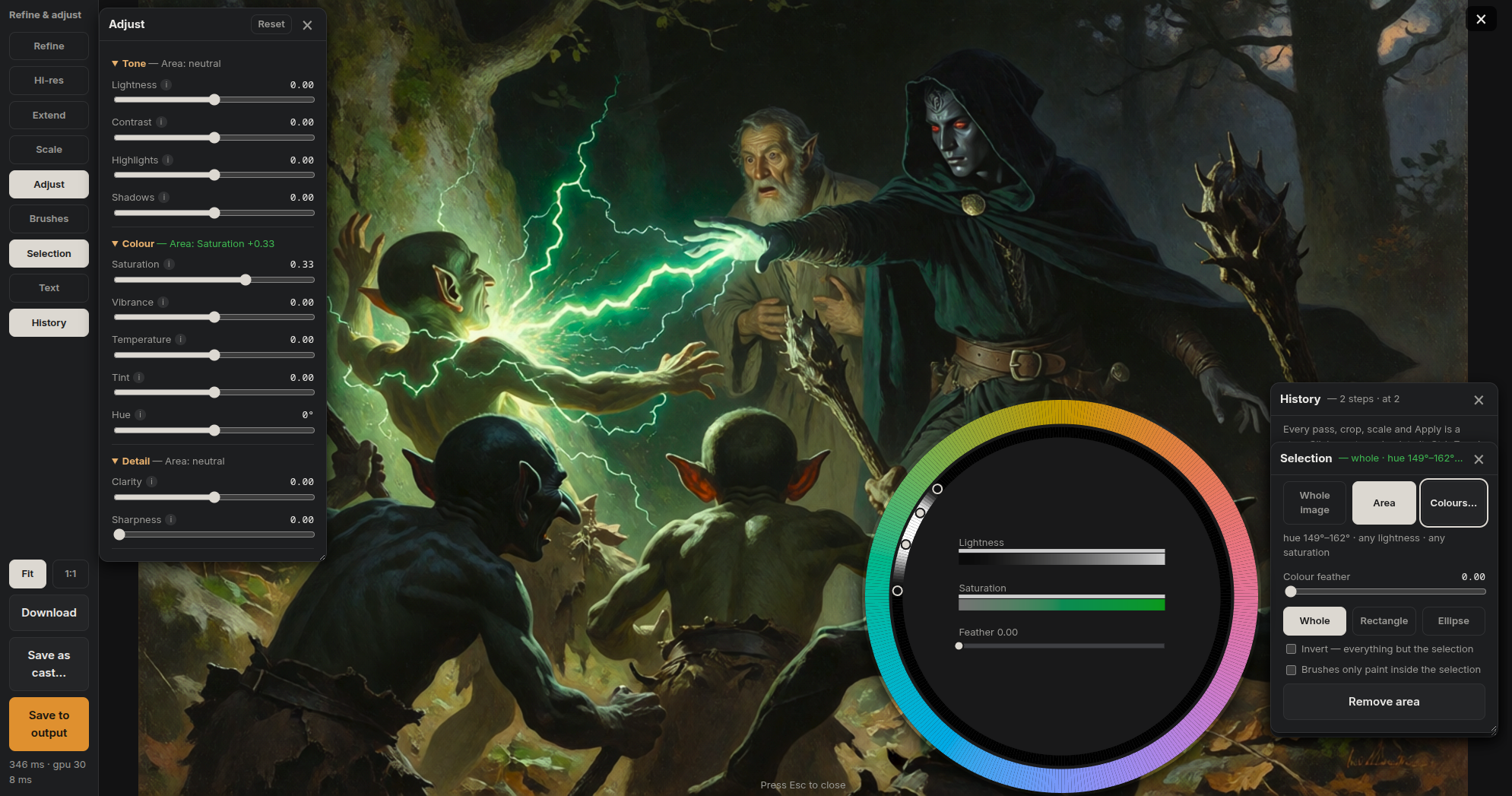
A click on a picture opens the one place it's finished: the picture nearly full screen, a rail of passes and tools down the left, and every step kept in its history.
Passes
- Hi-res enlarges the picture and adds detail at the new size.
- Refine goes over the whole picture lightly — or paint an area and only that is redrawn: a hand, a face, a sign.
- Edit changes it by instruction (“make it night”, “remove the hat”), with Flux.2 or FLUX.3 Klein.
- Extend grows the canvas and draws what lies beyond the edges, with FLUX.1 Fill.
- Scale enlarges with AMD FSR or an upscaler model (ESRGAN, SPAN, SwinIR…), drawing nothing new.
Any pass can use a different model from the one that drew the picture.
History you can compare
Every pass is a step. Go back with Ctrl+Z, or compare two steps side by side with a split you drag.
Eleven live sliders, lossless
Tone (lightness, contrast, highlights, shadows), Colour (saturation, vibrance, temperature, tint, hue) and Detail (clarity and sharpness). They re-filter on the GPU in milliseconds, always from the untouched original — so you can change your mind as often as you like, and no pass ever redraws over pixels that were already sharpened.
1:1 shows true pixels, the right view for sharpness; the fitted view is the right one for a grade.
Touch up by hand
Brushes — Dodge, Burn, Blur and more, plus Restore, which paints an earlier step back in. An area picked by shape and by colour, with a look of its own. Crop, and text drawn onto the picture in your installed fonts.
Read more: the Refine & adjust guide →